

June 2026
By now, Adobe Firefly has become a platform where you can choose from the major ai models, such as GPT Image, Flux and Gemini. Since then, 'Firefly' no longer refers to just their own model. With Firefly boards, you have the best place ever to generate pixel images, pixel artworks and videos. In a workspace that looks like a moodboard. But we're talking about vector artworks made with ai in Adobe Illustrator :-).
Ever since Adobe started offering not just the Firefly model but also other ai models, generating vector art in Adobe Illustrator has improved enormously. The Firefly model cannot handle typography in vector artworks. But the ai model Gemini, added to Illustrator, can. Gemini also understands prompts better, and there's a great trick to get an even more professional vector artwork than via the standard method.
Via the 'Generate Vectors' function, you get the best results when you first paste an example artwork (including typography) into one of your favorite ai chats and then ask it to write a prompt of no more than 800 characters for the Adobe Illustrator function 'Generate Vectors'. Ask it to describe in the prompt that you want a similar artwork, and ask what should be different from your reference artwork (for example, the typography). Then paste this prompt into Adobe Illustrator and you'll be amazed at the result.
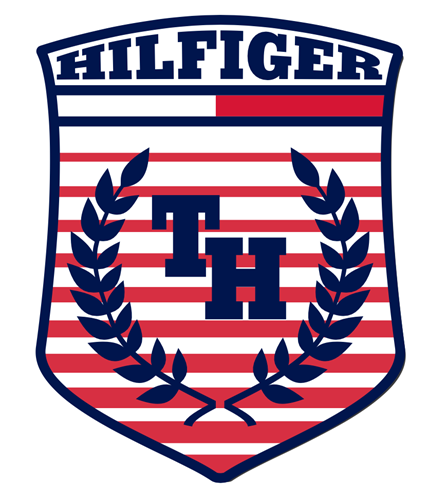
Above you can see an artwork I created in 2009 for Tommy Hilfiger and now used as an example to have a prompt written in Le Chat (Mistral.ai). When you ask your favorite ai chat for a prompt, ask it to write a prompt according to the following conditions:
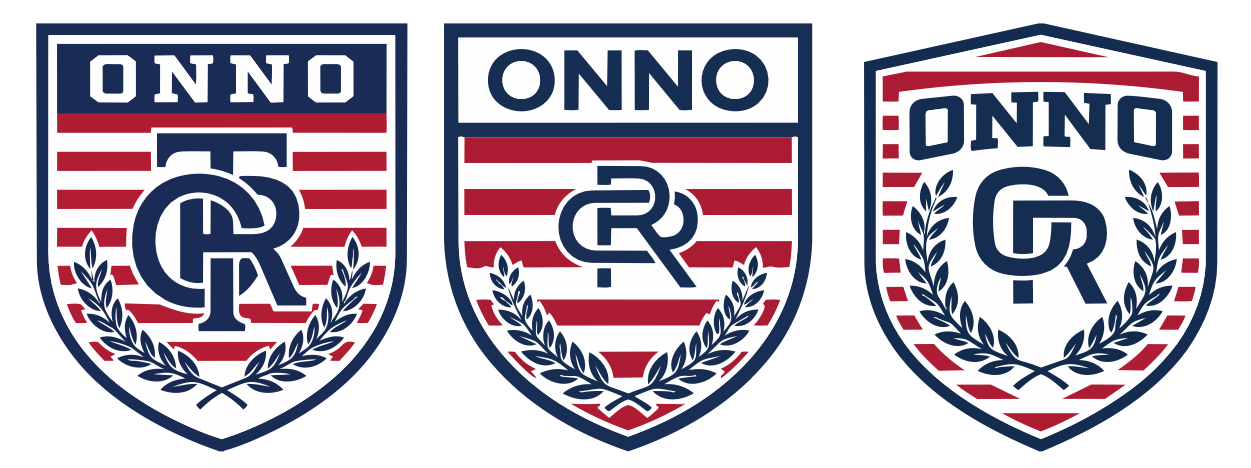
Three vector artworks created with the Adobe Illustrator function 'Generate Vectors' and the ai model 'Gemini'.
Yet another fantastic function has been added for generating vector artworks with ai in Adobe Illustrator. This function is called 'Concept to Vector'.
What the 'Concept to Vector' function requires from you is that you make a sketch. Make the sketch on paper and take a photo of it, or even better, use the free iPad app 'Adobe Fresco' and the iPad pencil to make a pencil sketch (highly recommended!). Place the image of the sketch in Illustrator, select the image, and your 'Contextual task bar' will show a 'Concept to Vector' button. That button opens a prompt window. Enter a simple prompt there that describes the artwork and then click the 'Generate' button.
There is a small gear icon that opens a window where you can make choices such as 'line drawing' or 'three colors', and more. At first, I would start with those two options. Note, however, that if you choose 'three colors' but don't ask for colors in your visual and/or text prompt, you'll simply get an artwork in one color. In this options window, you can make choices that determine the amount of detail in your artwork.
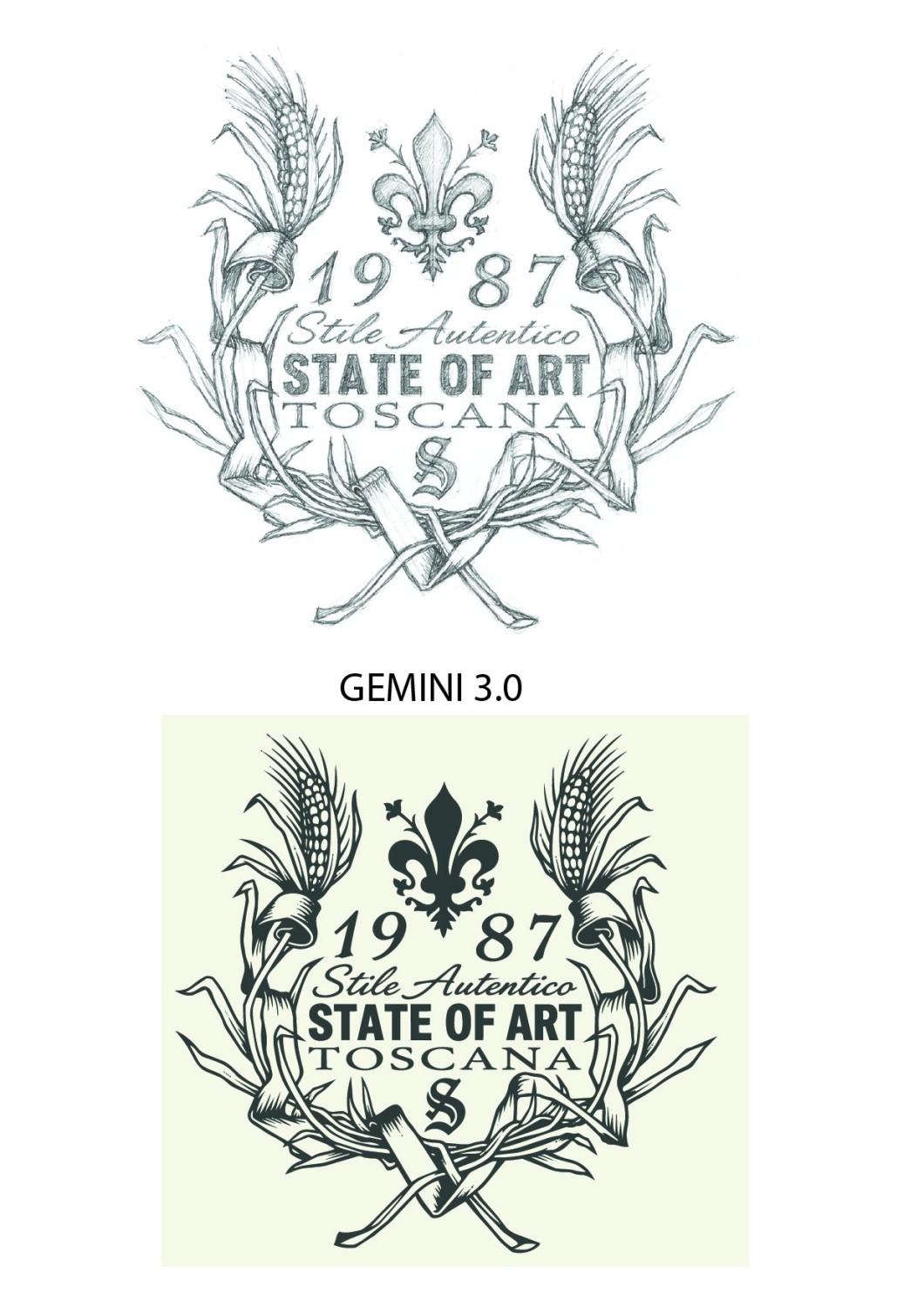
Vector artwork in Adobe Illustrator generated based on a sketch.
What the 'Concept to Vector' function is especially good at is artworks without clean lines. Like the one above. Below is another example.
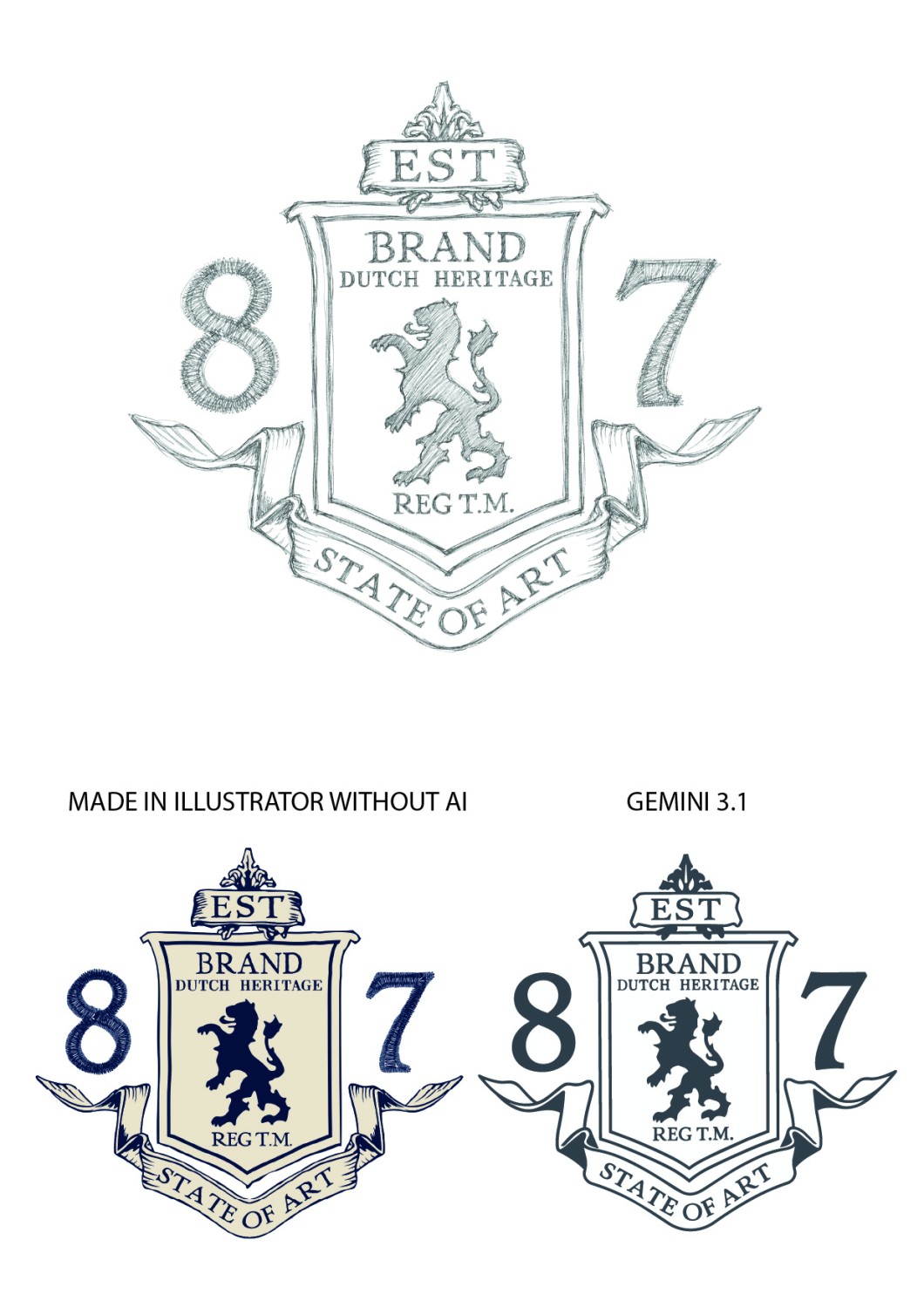
On the left you can see an artwork I made in Illustrator sometime in 2012. On the right you can see the artwork created via 'Concept to Vector'. It contains somewhat less detail, but that can be controlled in the tool.
Now I have also tested an artwork I once made for Tommy Hilfiger based on a font. With a suitable font, I created the artwork in a short amount of time. I use it in this context as an example to show how the 'Concept to Vector' tool handles large, clean lines.
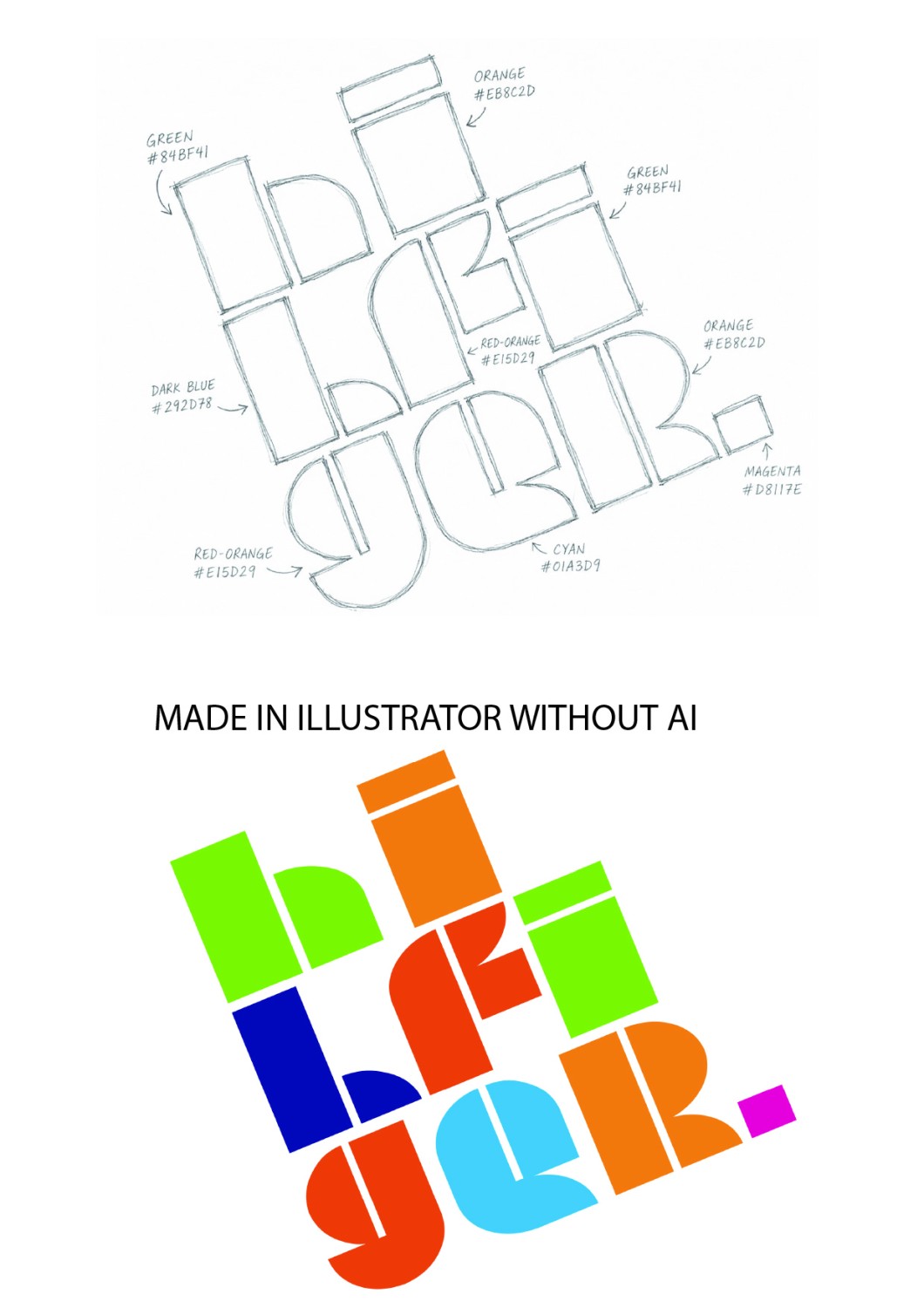
Artwork I created WITHOUT ai in Adobe Illustrator using a font.
Below you can see four options created by three ai models.
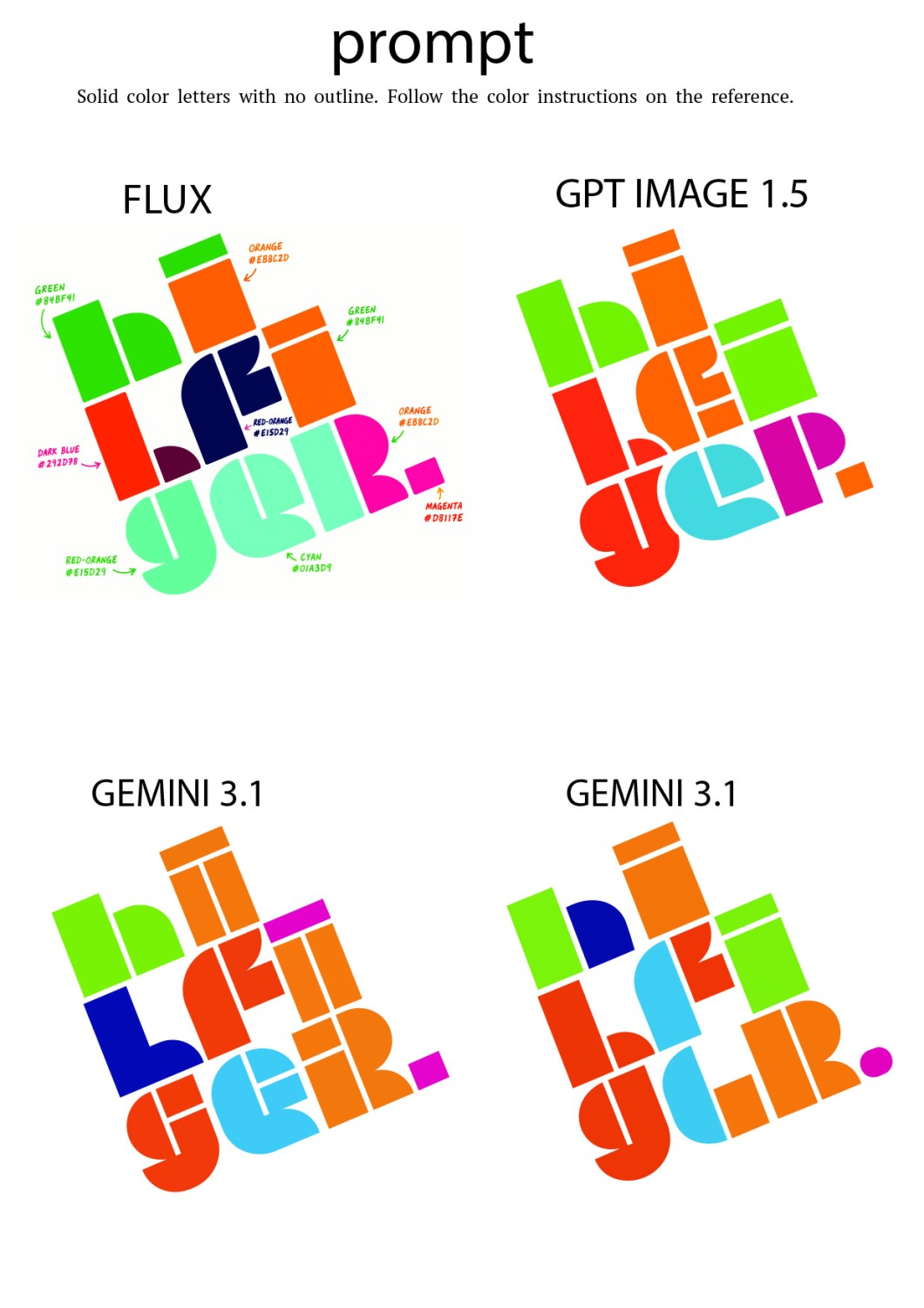
What stands out is that Flux sees the visual instructions as the artwork. GPT Image and Gemini understand the difference between the instructions and what the artwork should become. The artworks are still quite messy and contain many errors. That's because ai finds it difficult that the artwork is rotated. Below, I'm going to straighten the example sketch and try again.
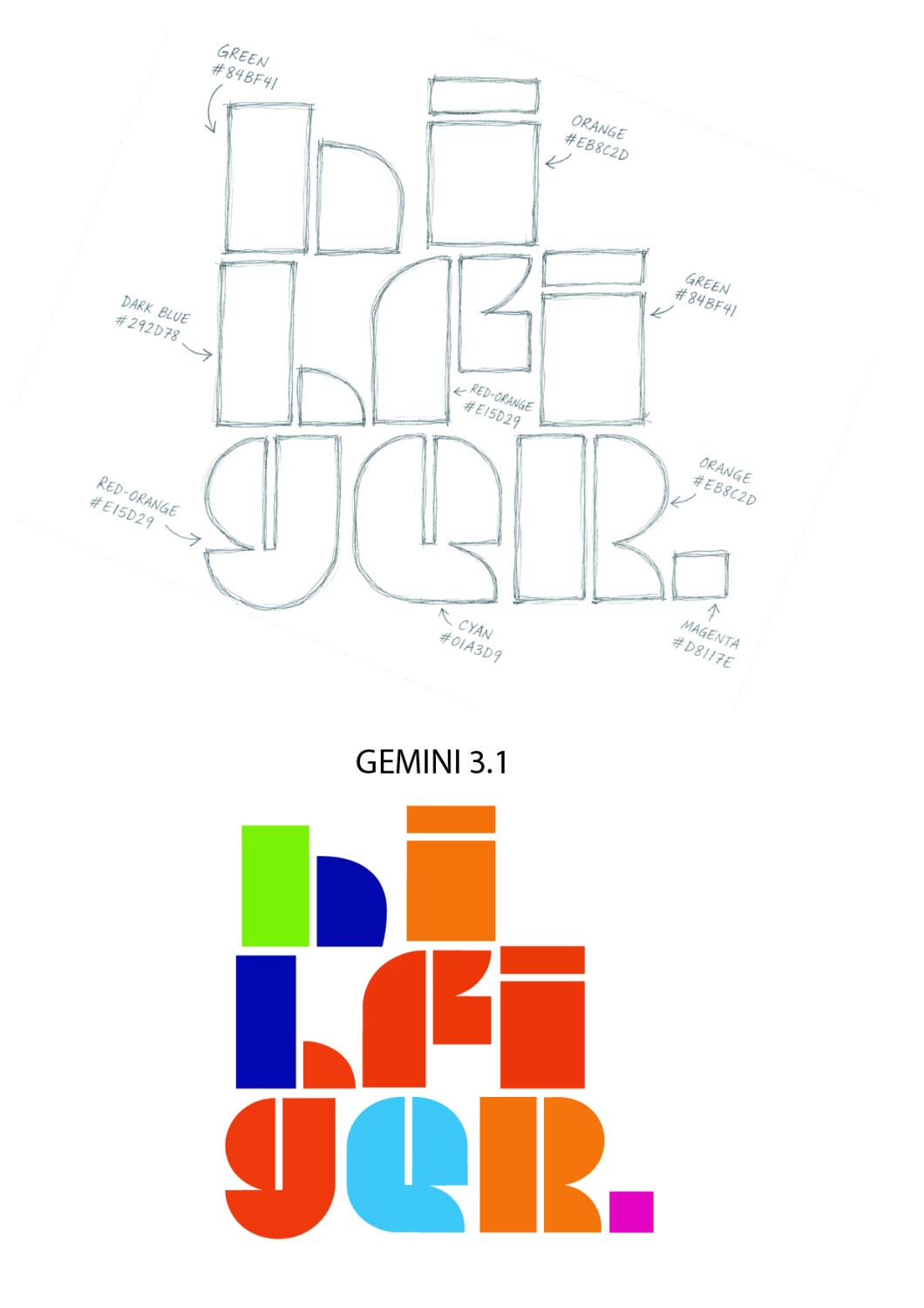
When the sketch is 'straight', ai finds it easier to read.
Because the sketch is no longer rotated, it goes better. The artwork is not perfectly clean and still needs some adjustments to lines and color. But with vector in Illustrator, that's a piece of cake. Yes, I would almost certainly have made the artwork with a font, just like I used to do back in the day. But here it's about the flow of the lines and how well ai understands your sketch.
Now it's up to you: get back to sketching on paper or with Adobe Fresco and create your artworks with Adobe Illustrator 'Concept to Vector'!
It goes without saying that when you book a course with Designersupport for a styling or product design team, this topic will be covered. Nowadays, we also offer more and more ai courses to marketing departments. In those, we focus more on creating promotional images (and video) with ai.
_______________________________________
Juni 2026
Inmiddels is Adobe Firefly een platform geworden waar je de belangrijkste ai modellen kan kiezen zoals GPT Image, Flux en Gemini. Sindsdien betekent 'Firefly' niet meer hun eigen model alleen. Met Firefly borden heb je de beste plek ooit om pixel afbeeldingen, pixel artworks en video's te genereren. In een werkomgeving dat er uit ziet als een moodboard. Maar we praten nu over vector artworks met ai gemaakt in Adobe Illustrator :-).
Sinds Adobe niet meer alleen het Firefly model als ai model aanbiedt, maar ook de anderen is het genereren van vector art in Adobe Illustrator enorm vooruit gegaan. Het model Firefly kan geen typografie aan in vector artworks. Maar het in Illustrator toegevoegde ai model Gemini wel. Ook begrijpt Gemini de prompts beter en er is een geweldige truc om een nóg professioneler vector artwork te krijgen dan via de standaard methode.
Via de functie 'Vectoren genereren' krijg je de beste resultaten wanneer je eerst in een van je favoriete ai chats een voorbeeld artwork plakt (inclusief typografie) en vervolgens vraagt om voor de Adobe Illustrator functie 'Vectoren genereren' een prompt te schrijven van maximaal 800 tekens. Vraag om in de prompt te omschrijven dat je een vergelijkbaar artwork wilt, vraag wat er anders moet dan je referentie artwork (bijvoorbeeld de typografie). Plak deze prompt vervolgens in Adobe Illustrator en je staat versteld van het resultaat.
Hier boven zie je een artwork wat ik in 2009 heb gemaakt voor Tommy Hilfiger en nu als voorbeeld heb gebruikt om een prompt te laten schrijven in Le Chat (Mistral.ai). Wanneer je in jouw favoriete ai chat om een prompt vraagt, vraag om een prompt te schrijven volgens de volgende voorwaarden:
Drie vector artworks gemaakt met de Adobe Illustrator functie 'Vectoren genereren' en het ai model 'Gemini'.
Er is nóg een fantastische functie bij gekomen om in Adobe Illustrator via ai een vector artworks te genereren. Deze functie heet 'Concept naar Vector' (Concept to Vector)'.
Wat de functie 'Concept naar Vector' van jou verlangt is dat je een schets maakt. Maak de schets op papier en maak er een foto van, of nog leuker, gebruik de gratis iPad app 'Adobe Fresco' en de iPad pencil om een potlood schets te maken (aanrader!). Plaats de afbeelding van de schets in Illustrator, selecteer de afbeelding en je 'Contextuele taakbalk' geeft een knop 'Concept naar vector'. Via die knop komt er een prompt venster. Daar vul je een simpele prompt in die het artwork omschrijft en klik vervolgens op de knop 'Genereren'.
Er is een klein tandwiel pictogram wat een venster oproept waar je keuze's kan maken zoals 'lijntekening' of 'drie kleuren' en nog meer. In het begin zou ik met die twee opties starten. Let wel, wanneer je 'drie kleuren' kiest maar je vraagt niet om kleuren in je visuele en of je tekst prompt, dan krijg je gewoon een artwork in één kleur. Je kan in dit opties venster in elk geval keuzes maken die de hoeveelheid detail van je artwork bepalen.
Vector artwork in Adobe Illustrator gegenereerd op basis van een schets.
Waar de functie 'Concept naar vector' vooral sterk in is zijn artworks met niet strakke lijnen. Zoals hier boven. Hier onder nog een voorbeeld.
Links zie je een artwork wat ik ergens in 2012 in Illustrator heb gemaakt. Rechts zie je het artwork wat is gemaakt via 'Concept naar vector'. Die bevat wat minder detail maar dat valt in het gereedschap te bepalen.
Nu heb ik ook een artwork getest wat ik ooit voor Tommy Hilfiger heb gemaakt op basis van een font. Met een geschikte font had ik het artwork in korte tijd gemaakt. Ik gebruik het in deze context als voorbeeld om te laten zien hoe het gereedschap 'Concept naar vector' om gaat met grote strakke lijnen.
Artwork wat ik zónder ai heb gemaakt in Adobe Illustrator met behulp van een font.
Hier onder zie je vier opties gemaakt door drie ai modellen.
Wat op valt is dat Flux de visuele instructies ziet als artwork. GPT Image en Gemini snappen het verschil tussen de instructies en wat een artwork moet worden. Nu zijn de artworks nog vrij rommelig en bevatten veel fouten. Dat komt omdat ai het moeilijk vindt dat het artwork is gedraaid. Hier onder ga ik de voorbeeld schets recht zetten en dan nog eens proberen.
Wanneer de schets 'recht' is vindt ai het makkelijker te lezen.
Omdat de schets nu niet meer gedraaid is gaat het beter. Het artwork is niet precies strak en vraagt nog om wat wijzigingen in lijnen en kleur. Maar dat is met vector in Illustrator zo gepiept. Ja ik zou het artwork vrijwel zeker met een font gemaakt hebben, zoals ik het vroeger ook had gedaan. Maar het gaat even om het lijnenspel en in hoeverre ai je schets snapt.
Nu is het aan jou, ga weer lekker schetsen op papier of met Adobe Fresco en maak je artworks met Adobe Illustrator 'Concept naar vector'!
Het spreekt voor zich dat wanneer je bij Designersupport een cursus boekt voor een styling of product design team dat dit onderdeel aan de orde komt. Wij bieden tegenwoordig ook steeds meer ai cursussen aan aan marketing afdelingen. Dan richten wij ons meer op het maken van promotioneel beeld (en video) met ai.
 Klik hier voor nederlands